

Directors with access to the Management Tracker can use the button below to log in with their email and password.
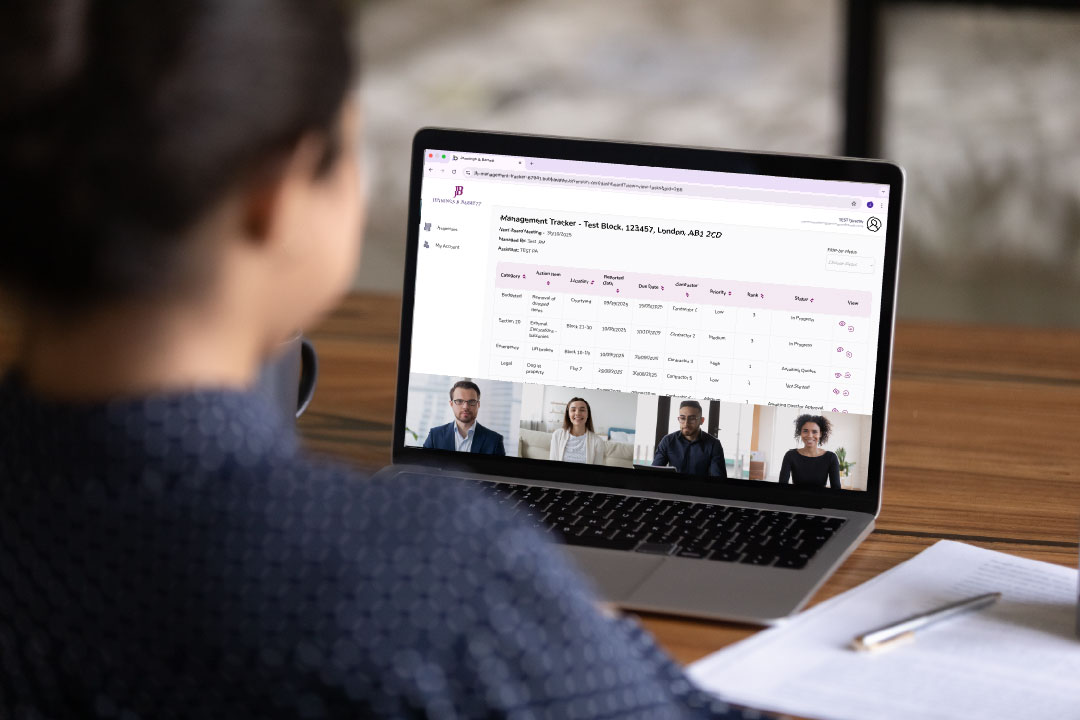
This short video details how you can use the Jennings & Barrett Management Tracker to view progress towards completing tasks related to your development.
The management tracker is a new tool we’re rolling out to track relevant developments. It provides clients with direct oversight of the progress made toward completing key management tasks and helps to provide guidance during your block’s board meetings.
Directors can use their trackers to:
- Refresh their understanding of the agreed priorities for the block.
- Understand what activities have been completed by their Property Management teams for each task.
- View related files relevant to projects and tasks, such as contractor quotes or photos from site inspections.
- Request changes to management priorities or aims.

1. How can I access the management tracker?
You will receive a link to your management tracker via email – please add this to your bookmarks, or if you choose, you can use these instructions to add the webpage to your computer/laptop’s desktop:
2. What devices can I access the tracker on?
The tracker is best viewed on a larger screen, such as a desktop or laptop. Whilst you can access the tracker on a smartphone or tablet, you may experience normal functionality issues.
3. I’ve requested edits to a task – why can’t I see them yet?
Once you have submitted your requested edit, it will be added to a queue of requested edits. This queue is sent to your Property Manager daily for their review. Please bear in mind that there may be periods when daily reviews cannot occur, such as during annual leave, or on those few occasions when your Property Manager is dealing with an urgent, responsive issue.
In cases where the suggested edit requires board approval, this will need discussion and agreement with the board.
4. Who can see the task edits that I suggest?
Suggested task edits are sent to your Property Management team and to the Director Board. You’ll also receive updates when your Property Manager updates task information.
5. What kind of edits can I suggest?
Directors can suggest edits to existing task comments, priority levels, and rankings.
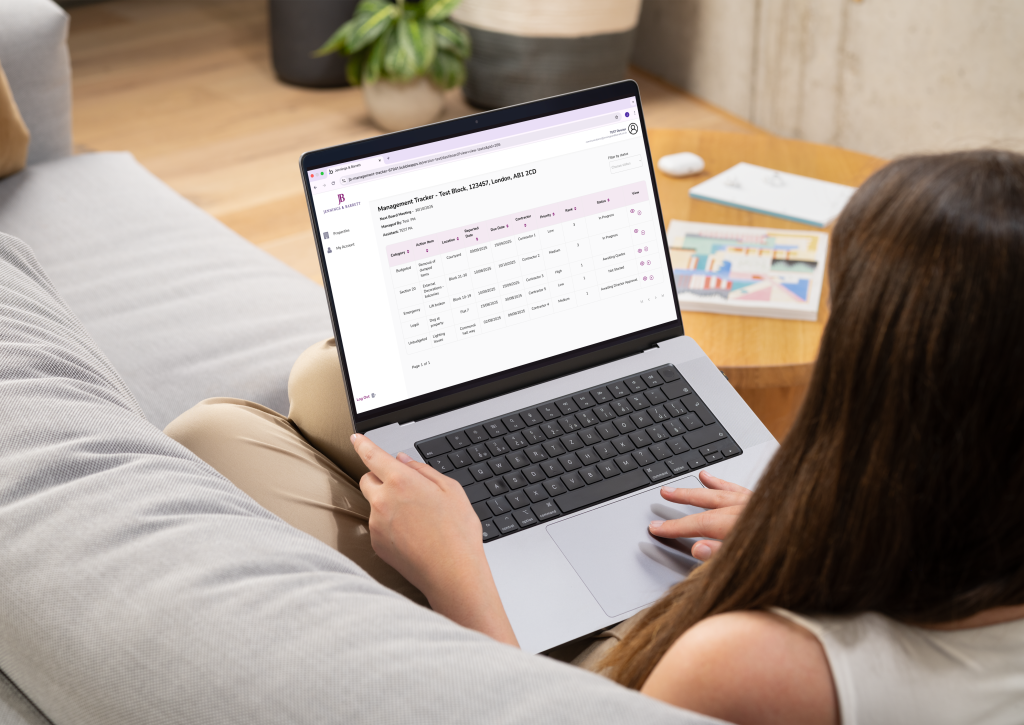
6. What’s the meaning of each column in the task window?
Category: This list groups tasks by the relevant function of the Management Company or by the type of project/task, such as legal, emergency procedures, or section 20 planning.
Action Item: The title of the task that needs to be completed.
Location: The location that is affected by the outstanding/completed task.
Reported Date: The date on which the task was added to the management tracker by the Property Management Team.
Due Date: The anticipated date of task completion.
Contractor: The name of the contractor, if relevant.
Priority: The level of priority that the task has been given by the board/Property Manager.
Rank: The level of precedence that the task has within its priority ranking.
Status: The progress that has been made against that task, to date.
View: Buttons to allow you to view more information about a task or to view activity against a task.


